Flit 1.5: transcribe a recording on your Mac
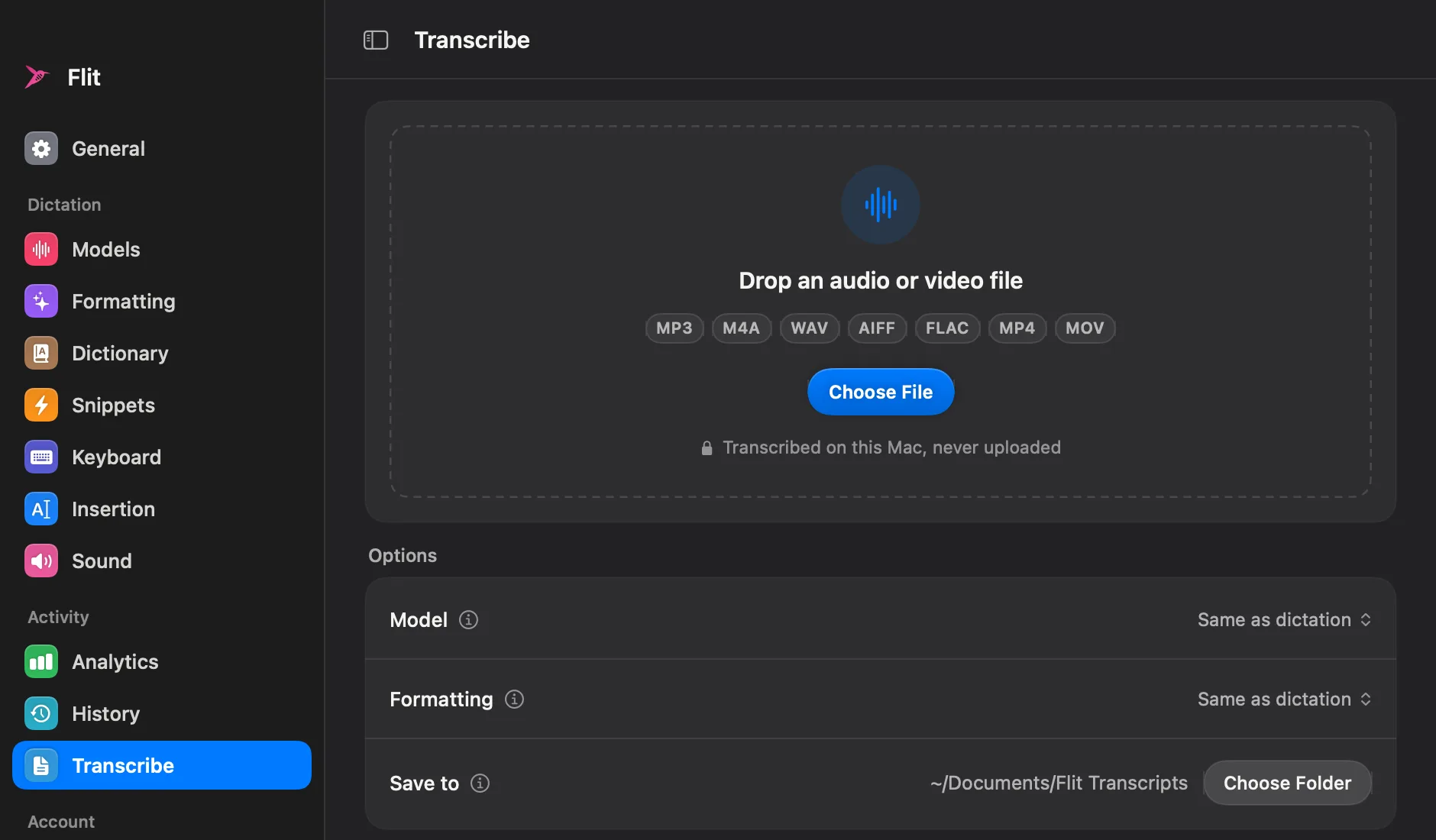
Flit 1.5 adds a Transcribe tab: drop in an audio or video file and get the transcript back, on your Mac, with nothing uploaded. Export text, Markdown, SRT or VTT. A free update for every license.

The short answer
Flit 1.5 is a free update to the private dictation app for Mac. It adds a Transcribe tab that turns an audio or video file, such as a meeting, a lecture or an interview, into a transcript on your Mac. Drop the file on the tab or on the menu bar icon, or right-click it in Finder. A two-hour recording takes a few minutes. Export it as text, Markdown, SRT or VTT. Nothing is uploaded.
Flit 1.5 does the thing the features page has said was next since launch: it transcribes a recording. Open the new Transcribe tab, drop in an audio or video file, and the transcript comes back, on your Mac, with nothing uploaded. It is a free update for every license.
This post is the why. For the steps, the 1.5 release page walks through every button.
Dictation and transcription are two different jobs
Dictation is for what you are writing now: hold a key, speak, and finished text lands at your cursor. Transcription is for what was already said: a meeting, a lecture, an interview, a voice memo on your phone. The same voice models can do both, and until now Flit only did the first.
This is it. The Transcribe tab uses the models you already have, and the file never leaves the Mac, which is the whole point of Flit.
Every way in
You do not have to find the tab first. Drop a recording on the Flit icon in the menu bar, and the job starts. Right-click a file in Finder and choose Services → Transcribe with Flit. Open the file with Flit from any app. Or choose Transcribe File from the icon’s menu and pick the file there. Each one opens the tab to show progress.
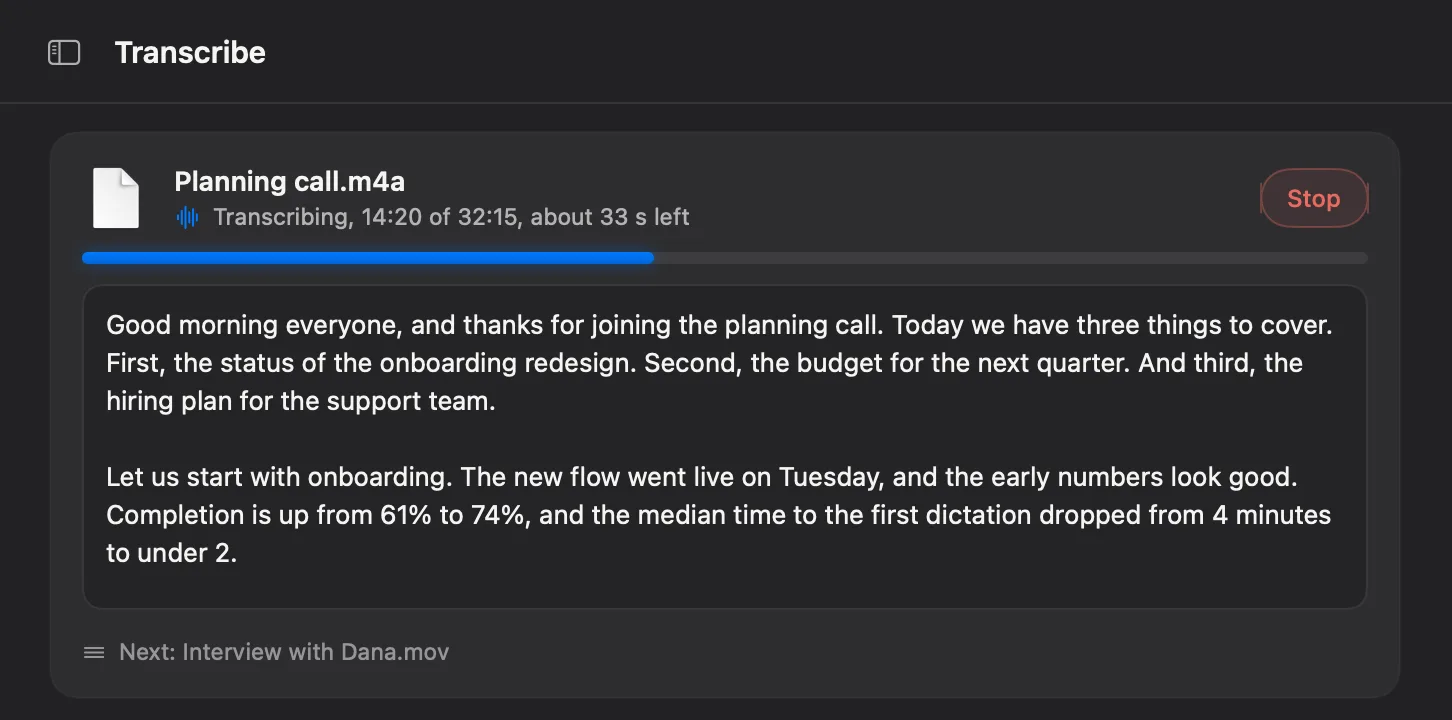
While it runs, the Flit icon in the menu bar wears a ring that fills as the job goes, so you can close Settings and keep working. If Flit is in the background when it finishes, a notification says so, and clicking it opens the transcript.
What you get back
Every transcript is saved as a text file in a folder you choose, Documents → Flit Transcripts by default, and kept in the tab’s list so you can open it again later. From there you copy it, or export it as Markdown, or as SRT or VTT subtitles with timestamps for an editor or a video.
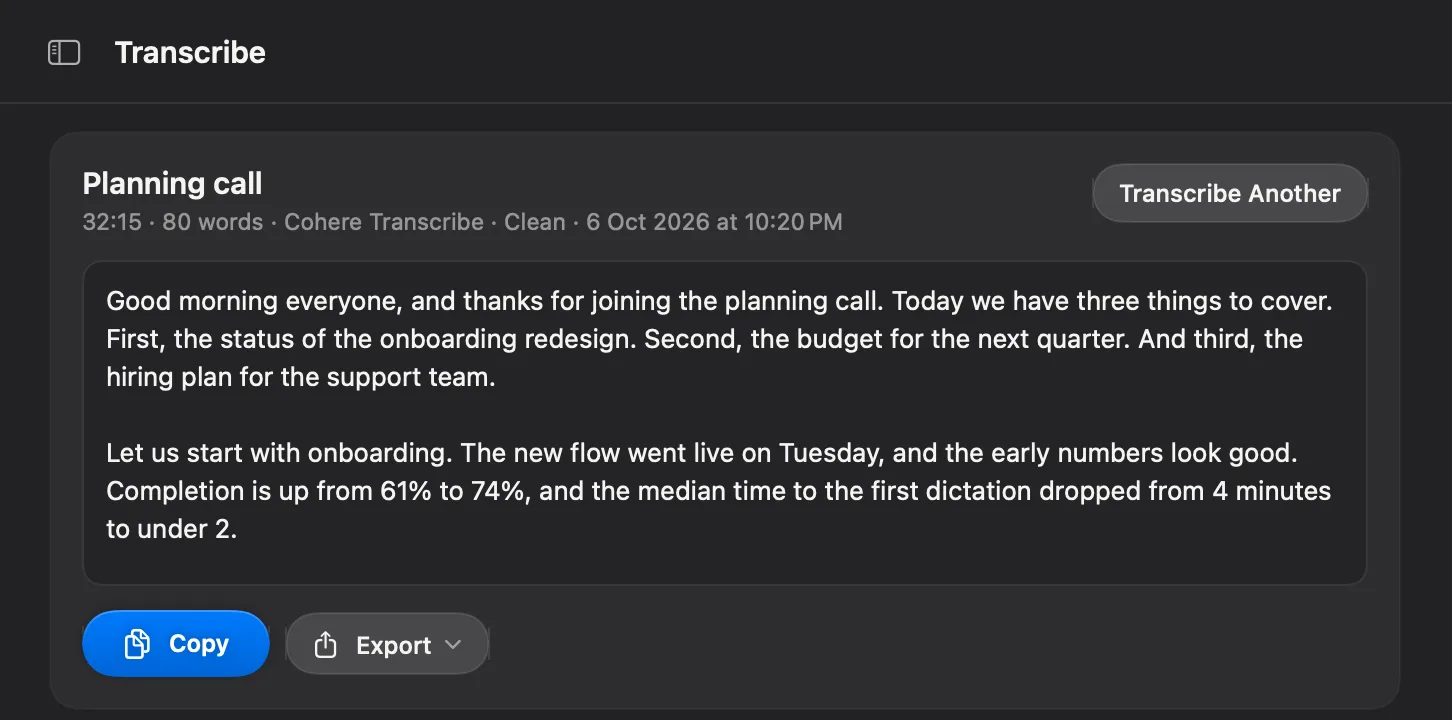
A switch above the text shows the raw transcript, what the voice model heard with every hesitation left in, beside the formatted one. If Polished ever rewrites a sentence in a way you do not like, the raw words are one click away, and Copy takes whichever is showing.
Paragraphs are not guessed. Flit listens for the pauses in the recording with the same voice activity detector that gates dictation, and a pause of two seconds or more starts a new paragraph. The speech between pauses is what gets transcribed, so a quiet stretch of a recording costs nothing.
Your choice of model and formatting
The tab has its own choice of voice model and formatting level, separate from your dictation settings and remembered. The default is whatever you dictate with.
- Verbatim writes every word as heard.
- Clean drops the hesitations and writes times and numbers properly. It is the fast one.
- Polished runs the formatting model over every paragraph and makes the recording read as prose. It knows it is working on a transcript rather than a dictation, so a paragraph stays a paragraph and never turns into a list.
Speed depends on the Mac and the model. On an Apple silicon Mac with Cohere Transcribe, a two-hour recording came back at Clean in about three and a half minutes in our tests, and at Polished in about fifteen. Memory stays flat: the file is read five minutes at a time, so the two hours cost about 165 MB over the engine itself.
From the terminal
The same transcriber is a command. Click Install beside Command in
Settings → Transcribe, and flit is there in every Terminal window:
flit transcribe meeting.m4a --formatting clean --out ~/Transcripts --srtIt prints the transcript, writes the subtitle files if you ask for them, and ends with one line on the speed and the word count. There are options for the model, the language and the output folder. Useful for a folder of recordings, or for a script.
What it does not do, yet
A transcript is one flow of text. Flit does not say who said what, and it does not record a meeting as it happens: you hand it a recording you already have. Both speaker labels and meeting recording are on the roadmap, and both will run on your Mac like everything else. If speaker labels are the job today, MacWhisper does them.
A free update
Every license includes twelve months of updates, and 1.5 is one of them. Choose Check for Updates from the Flit menu in the menu bar, and the Transcribe tab is there after the restart. Your settings, dictionary, snippets and history carry over unchanged. If you are on the trial, the tab is on for you too.
Questions people ask.
Is Flit 1.5 a free update?
Yes. Every license includes twelve months of updates, and Flit has only been on sale since September, so every license gets 1.5 at no cost. The trial gets it too, with the Transcribe tab on.
How do I transcribe a recording with Flit?
Open Settings → Transcribe and drop the file in, or choose it with the button. Or drop it on the Flit icon in the menu bar, pick Transcribe File from the icon's menu, or right-click the file in Finder and choose Services → Transcribe with Flit. The transcript appears as it goes and is saved as a text file when it is done.
Which file types does it take?
Audio and video that macOS can play: MP3, M4A, WAV, AIFF, FLAC, MP4 and MOV among them. Video is read for its sound; nothing is done with the picture.
Is the recording uploaded anywhere?
No. The file is read on your Mac by the same voice models that dictate, in pieces, and nothing leaves the Mac. Flit transcribes with Wi-Fi off.
How long does it take?
On an Apple silicon Mac with Cohere Transcribe at the Clean formatting level, a two-hour recording took about three and a half minutes in our tests. Polished, which runs a formatting model over every paragraph, takes longer: about fifteen minutes for the same two hours.
Does it say who said what?
Not yet. A transcript is one flow of text in paragraphs, with timestamps in the SRT and VTT exports. Speaker labels and meeting recording are on the roadmap.